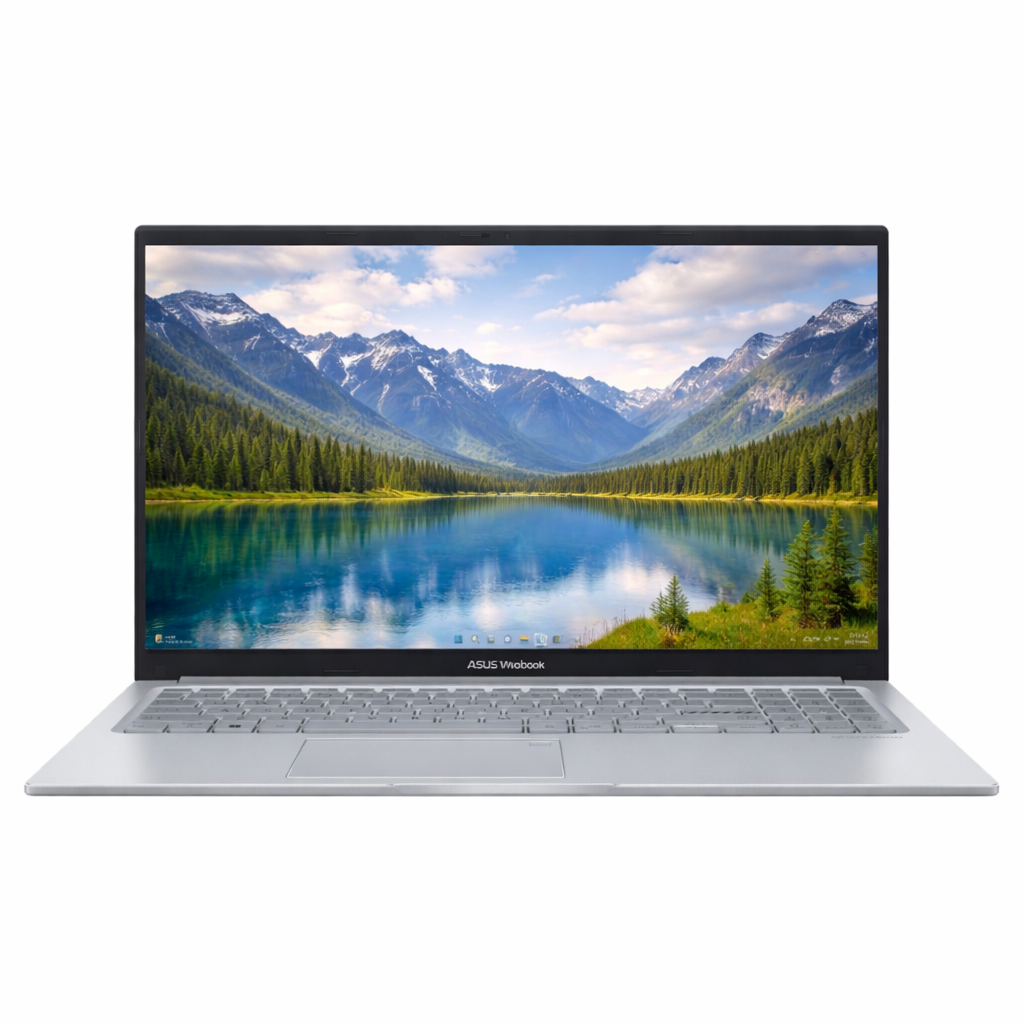
Featured Guide: Best Budget Laptops for Programming Students in 2026
Introduction
If you are learning programming in 2026, your laptop is more than a note-taking device. It is your coding workstation, testing environment, project lab, and interview preparation machine. Most students in the US and UK want a laptop that feels fast and reliable, but still fits a practical student budget. The challenge is that many listings look similar, while real performance differences only appear after a few weeks of coding, multitasking, and deadline pressure.
This guide is written to solve that problem. You will learn what specifications actually matter for coding students, where you can save money, and which mistakes usually lead to regret purchases. Instead of chasing high-end branding, the focus here is long-term value: smooth editor performance, strong multitasking, useful battery life, and enough headroom for new tools over the next few years.
Whether you are starting computer science, learning web development, or building portfolio projects for internships, this article will help you choose the right machine once, use it confidently, and avoid wasting time and money on the wrong configuration.
What Programming Students Actually Need
Programming workflows are usually mixed workloads. You might run VS Code, a browser with many tabs, a local server, a database tool, Git, and a video call at the same time. That means stability and responsiveness matter more than headline specs. A laptop can look strong on paper, but if memory is low or thermals are poor, it feels slow during real class and project sessions.
For most students, the best balance is a modern mid-range processor plus 16GB RAM and SSD storage. This setup handles common development stacks including Python, Java, JavaScript, SQL, and beginner cloud tools without forcing constant compromises. If your course includes virtualization, Android emulators, or heavier data workloads, prioritize cooling quality and memory first.
Battery life also matters for campus mobility. A charger should be backup, not a permanent dependency. Typing comfort, display clarity, and port selection improve daily productivity more than many students expect.
Minimum Laptop Specs for Coding Students in 2026
Safe baseline
- Processor: Intel Core i5 (12th gen or newer) or AMD Ryzen 5 (5000 series or newer)
- RAM: 16GB recommended, 8GB only for very light coding
- Storage: 512GB SSD ideal, 256GB SSD minimum
- Display: Full HD (1920x1080), 14-inch or 15.6-inch
- Battery: Real-world 7 to 10 hours
- Ports: USB-A, USB-C, HDMI, headphone jack
In practical terms, 16GB RAM is the biggest quality-of-life upgrade for programming students. It reduces lag when you run editor extensions, local tools, and browser-heavy documentation together. SSD storage is equally important because package installs, project indexing, boot times, and file search become much faster than HDD-based setups.
Processor, RAM, and Storage Explained for Student Coding
Processor
Core i5 and Ryzen 5 chips are the sweet spot for most student budgets. They are efficient enough for all-day work and strong enough for common development tasks. Higher tiers are useful for heavy simulation or advanced workloads, but often unnecessary for first-level programming courses.
RAM
RAM determines how well your laptop multitasks. If RAM runs low, the system starts swapping to disk, which causes slowdowns. For coding students who keep many tools open at once, 16GB is now a practical standard, not overkill.
Storage
Always choose SSD. Many low-price deals advertise high storage but use slow HDDs. For developers, SSD speed improves your daily workflow more than extra but slower capacity. Start with 512GB SSD if possible and manage archives using cloud or external backup later.
Best Budget Laptop Picks for Programming Students
The recommended models below are strong value options for programming students. They are listed in detail in the product section and compared side-by-side in the table.
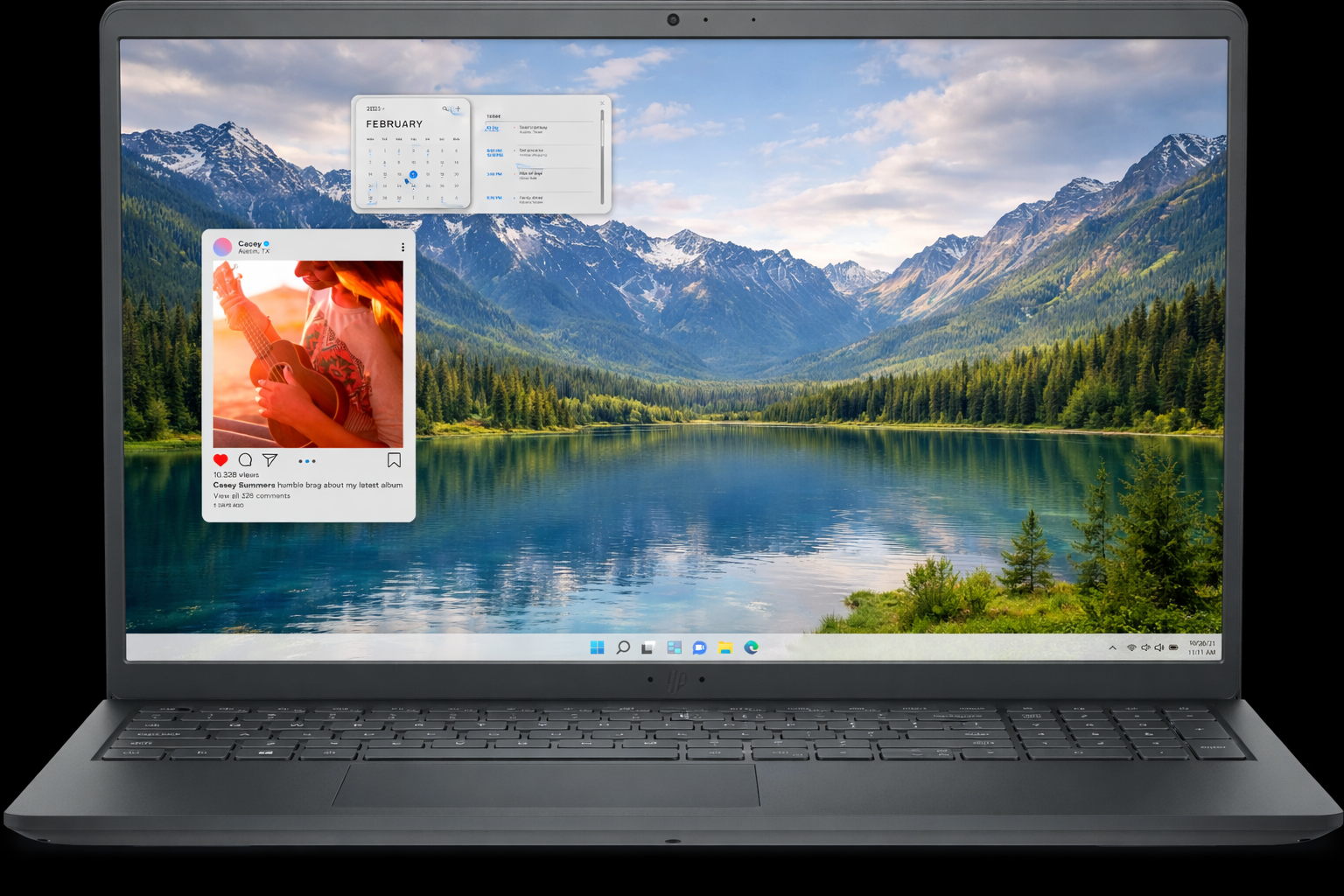
- Dell Inspiron 15 3530: dependable performance for coursework and coding projects
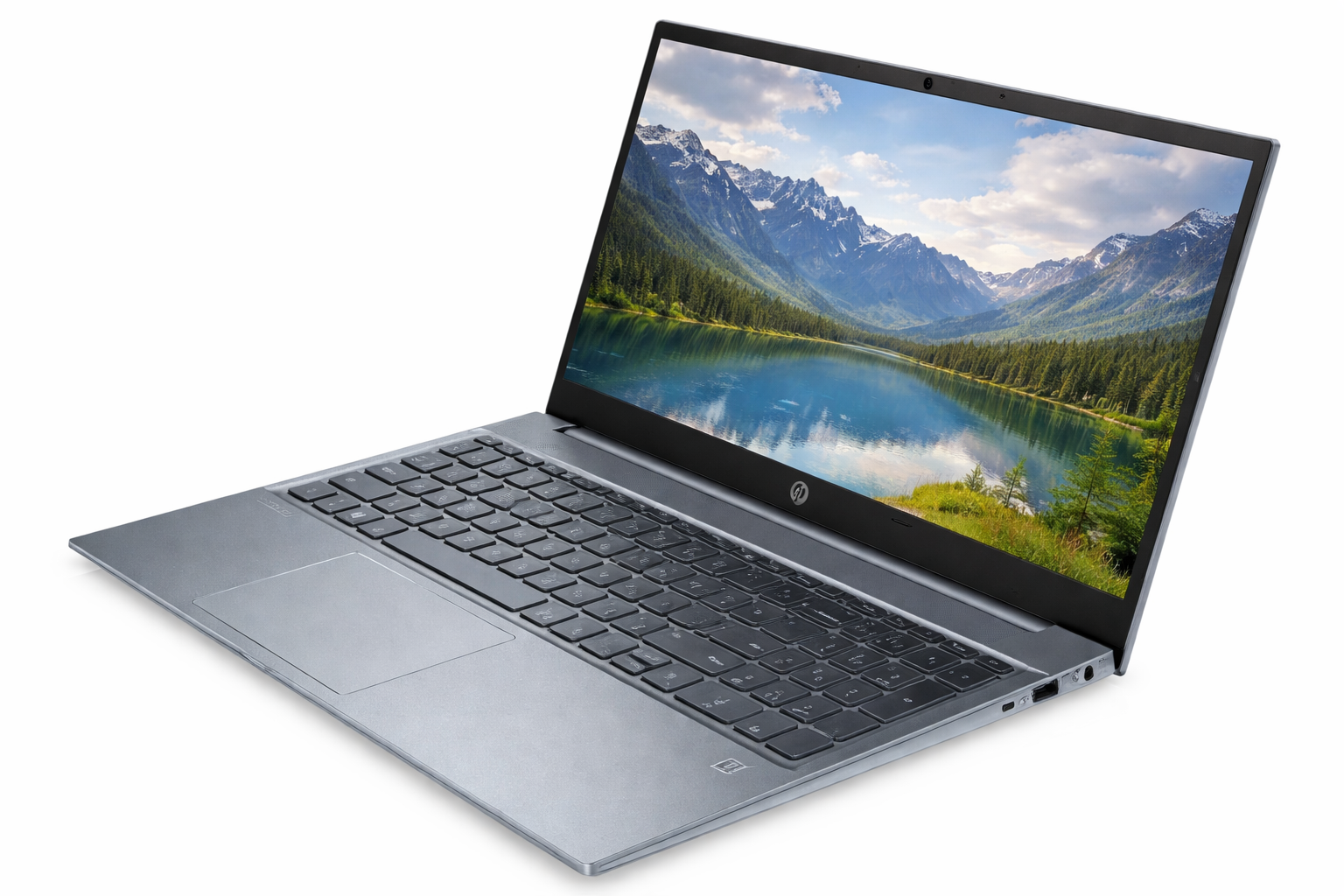
- HP Pavilion 15: balanced performance and solid multitasking value
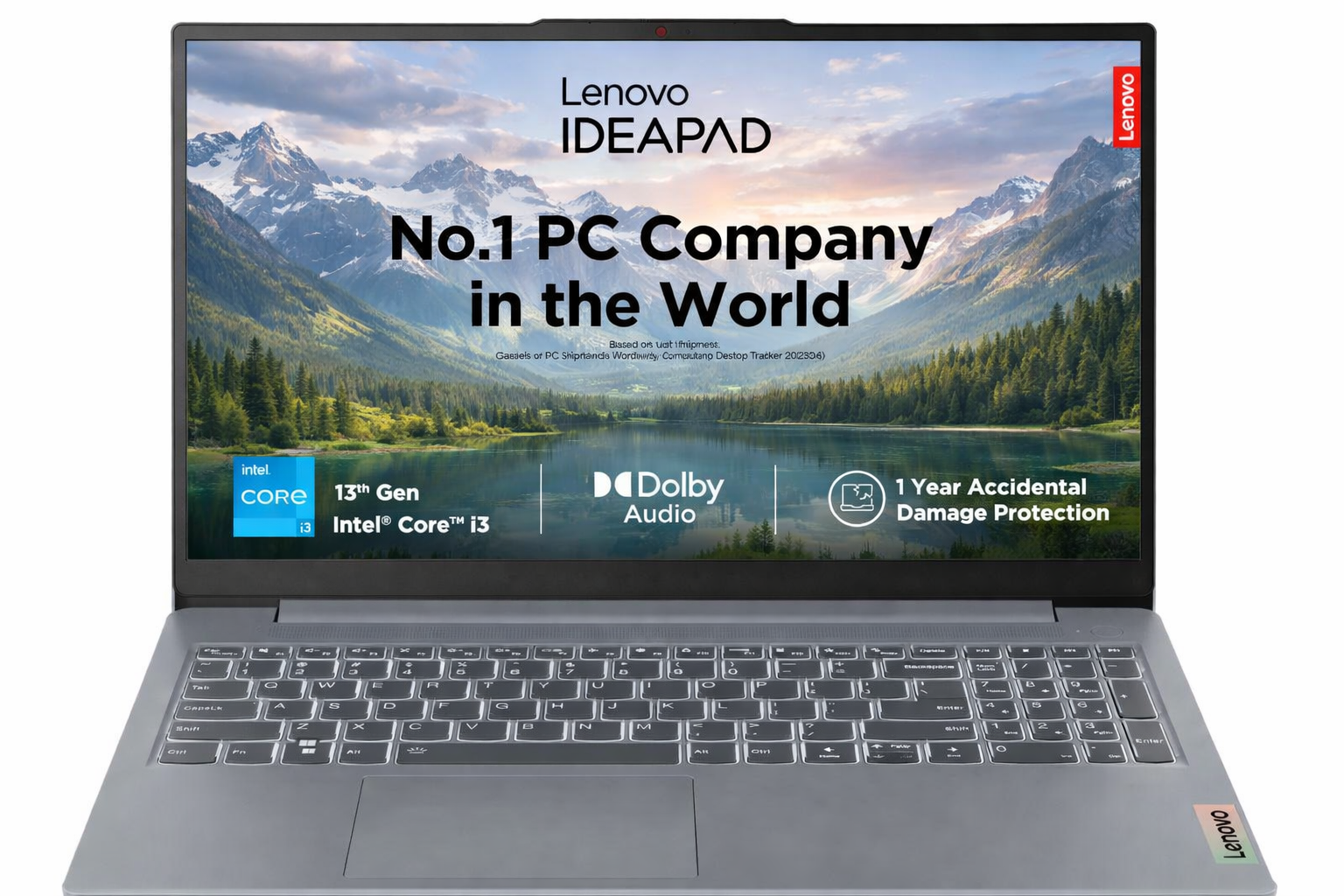
- Lenovo IdeaPad Slim 3: portability-focused choice for commute-heavy students
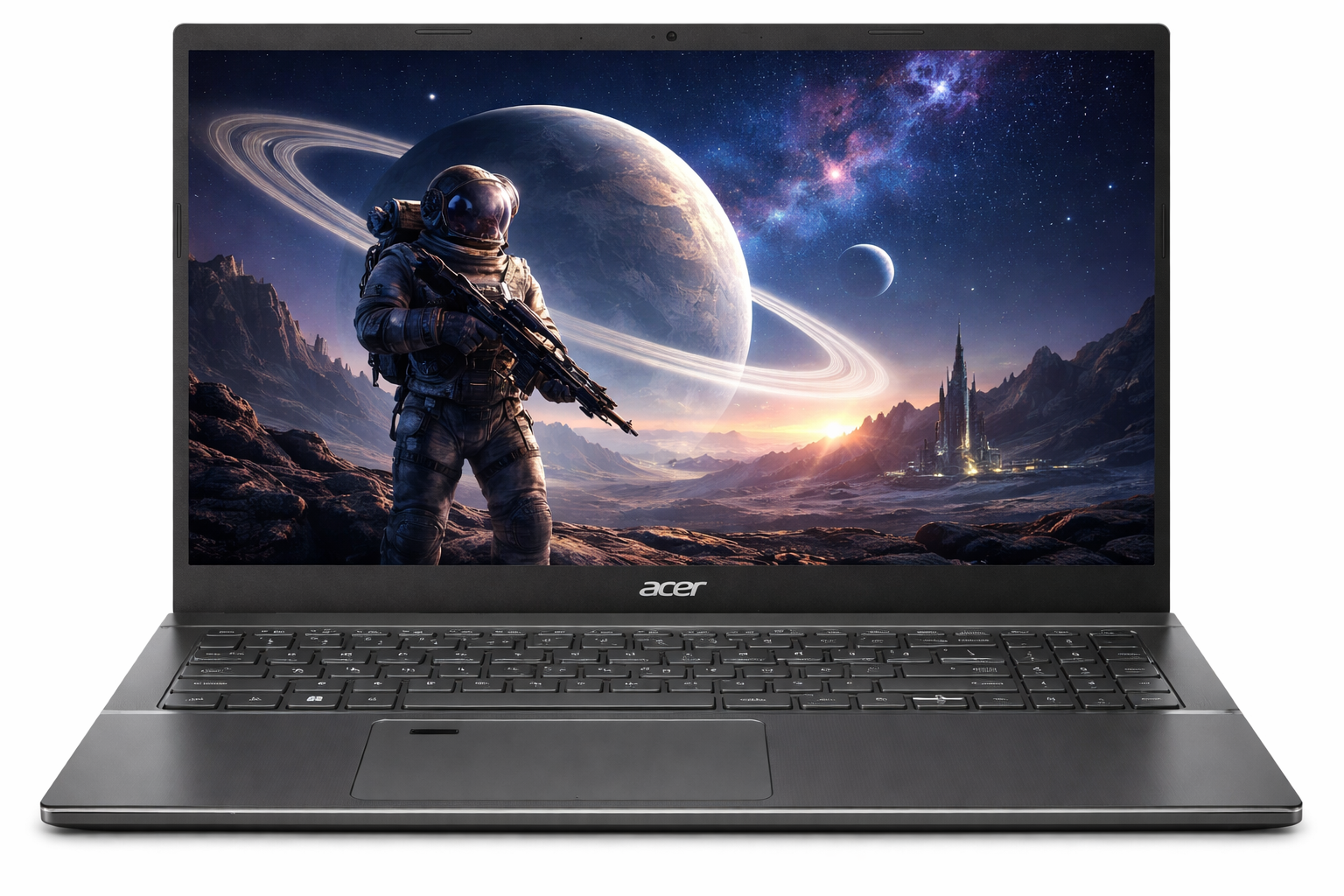
- Acer Aspire 5: practical port selection and consistent budget value
- ASUS VivoBook 15: all-round option with competitive student pricing
For a quick side-by-side hardware check, see the programming laptop comparison table below. If you are still deciding between study and development priorities, compare this with our long-form laptop buying guides section.
Pros and Cons of Budget Laptops for Programming
Pros
- Strong value for students with limited budgets
- Enough power for most degree and bootcamp coding tasks
- Widely available across US and UK retailers
- Better ROI when paired with student discounts and seasonal offers
Cons
- Entry models may have average display brightness or speakers
- Thermal performance can vary under sustained heavy loads
- Some budget variants use non-upgradeable RAM
- Build quality depends heavily on exact configuration, not brand alone
Buying Tips for US and UK Programming Students
Choose your laptop based on your course software requirements first. If your modules are web development and core programming, a mid-range CPU with 16GB RAM is usually enough. If your course includes VMs, container-heavy workflows, or larger data projects, prioritize better cooling and memory headroom.
When comparing listings, check full model configuration instead of only series name. Two laptops with the same branding can have very different screens, battery quality, and RAM upgrade options. Also factor in warranty quality and return policy because student productivity depends on reliability during exam and assignment periods.
Try to buy during back-to-school and holiday sale windows in both USD and GBP markets. Student discount programs and official refurbished channels can unlock better specifications in the same budget range. If price is tight, reduce storage before reducing RAM.
Operating System Choice for Programming Courses
Most programming students can succeed on Windows, macOS, or Linux, but course compatibility should guide your decision. In many US and UK institutions, Windows remains the safest default because it supports a wide range of academic software, exam tools, and department-specific utilities. It is also easier to find budget hardware with good specifications on Windows.
macOS is highly efficient and popular among developers, especially for mobile and web workflows, but entry pricing is often above strict student budgets. If you already own a MacBook or can access student discounts, it can be excellent for programming. If not, a well-configured Windows laptop gives stronger price-to-performance in most budget ranges.
Linux is ideal for students who want deeper control and terminal-first development, but it can require additional setup for drivers, compatibility layers, and specific class software. A practical approach for many students is to use Windows with WSL for Linux tooling, giving broad compatibility while still supporting modern development workflows.
Battery, Build Quality, and Thermals Matter More Than You Think
Programming students often focus only on CPU and RAM, but daily comfort comes from battery consistency, keyboard quality, and heat control. A laptop that performs well for the first 10 minutes but throttles during longer compile sessions can slow your entire workflow. Reliable thermal design keeps performance stable when running local servers, container workloads, or multi-file builds.
Battery life claims on product pages are usually ideal-case numbers. Real student usage with Wi-Fi, browser tabs, IDEs, and meetings is heavier. A realistic target is 7 to 10 hours of mixed use. Fast charging is a bonus because it helps during short breaks between classes and labs.
Build quality also affects long-term value. Students carry laptops daily, so hinge strength, keyboard durability, and chassis rigidity matter. If possible, choose models with known reliability records and clear warranty terms. Spending a little more for better durability can be cheaper than repairing or replacing a weak build during your degree.
Budget Tiers: What You Can Expect in the US and UK
Entry budget (about $450-$600 / £400-£550)
This range can work for beginner programming if you choose carefully. Aim for at least a Ryzen 5 or Core i5 configuration and prioritize SSD storage. Some models at this tier still ship with 8GB RAM, so check whether upgrades are possible before buying.
Best-value tier (about $600-$850 / £550-£800)
This is the strongest zone for most students. You can usually find 16GB RAM and 512GB SSD options with balanced battery life and decent displays. For computer science students, this range typically delivers the best balance of performance, portability, and lifespan.
Upper student tier (about $850-$1100 / £800-£1000)
If your course includes heavier workloads, this tier offers better cooling, higher-quality displays, and stronger build quality. You may also get better keyboards and improved battery efficiency. It is still important to compare exact model configurations because value can vary widely even at higher price points.
Common Buying Mistakes Programming Students Should Avoid
The most common mistake is buying by brand name alone. Every brand has both excellent and weak models. Always compare processor generation, RAM amount, SSD type, and display quality for the exact model code you are purchasing. Another frequent mistake is choosing a large but slow HDD instead of a smaller SSD; for coding workflows, speed has a bigger impact than raw capacity.
Students also underestimate future needs. A laptop that barely handles first-semester tasks may struggle badly by second year when projects become larger. This is why choosing 16GB RAM where possible is a safer long-term decision. Finally, do not ignore return windows, warranty support, and repair availability in your region. Reliability and service quality are part of your real cost, not optional extras.
Internal Resources You Should Use Next
To build a complete student tech setup, continue with these internal pages:
- AI Tools: Use practical AI tools for research summaries, planning, and productivity
- Coding: Build a beginner-friendly coding workflow and project routine
- Laptop Picks: Revisit the top recommended models and their best use cases
- FAQ: Get quick answers to common programming laptop questions
- Contact: Send your course-specific questions to StudentTech Guide
Conclusion
The best budget laptops for programming students in 2026 are not the absolute cheapest models. They are the models that remain smooth when real coding workloads start: editor, browser, terminal, local server, and collaboration tools running together. For most students in the US and UK, the strongest value comes from Core i5 or Ryzen 5 laptops with 16GB RAM and 512GB SSD.
Choose practical performance over marketing extras, confirm your course requirements early, and buy for at least three to four years of use. A good decision now will support your assignments, portfolio, internships, and first professional projects without forcing an early replacement.